分类: 未分类

  • 转linux系统下,11款常见远程桌面控制软件

    远程控制能够给人们带来很多便利,本文介绍了11款常见的Linux系统下的远程桌面控制工具,总有一款能适合您。

    一. Grdc
    它是一个用GTK+编写的,适用于gnome桌面环境的远程桌面访问软件。看图:
    常见功能:
    1.提供全屏,窗口化的远程控制。支持高分辨率下的窗口显示以及调整。
    2.可浮动的工具栏
    3.可抓取键盘
    4.支持建立一个“常用访问列表”
    5.连接快速,高效
    6.全屏模式下,当鼠标划过屏幕边缘时自动滚动
    7.全屏模式下工具栏同样支持浮动效果,可直接进行例如模式切换,键盘抓取最小化等常见操作。
    8. rdesktop 支持RDP协议,
    9. 支持 VNC 连入协议

    官方网站: http://grdc.sourceforge.net/
    下载地址:http://sourceforge.net/project/showfiles.php?group_id=248852

    二.TightVNC
    跨平台的开源远程桌面控制程序,使用可扩展的 VNC的RFB协议。主要功能:
    1. 程序高度优化,保证了在网络情况不好的时候,也能稳定的保持连接。
    2. 定制性高
    3. 支持 SSH 自动通道
    4. 全面支持 VNC下使用的RFB协议
    5. 增强的网页浏览模式
    6. 支持两种密码保护模式:全功能控制 和 只读访问模式

    官方网站: http://www.tightvnc.com/
    下载地址:(因支持跨平台系统,所以只提供下载页面共大家选择)
    http://www.tightvnc.com/download.html

    三.Terminal Server Client
    别名:tsclient,是一个用来访问Windows系统(包括常见的2000,NT,XP等)的GNOME桌面环境下的远程访问软件。支持协议: RDP,主要功能
    1. 可以通过gnome面板上的按钮来快速访问
    2. 支持 RDP v和 rdesktop 1.3
    3. 支持在win系统下以其解码方式读取  .rdp文件
    4. 支持以 ASCII方式写入 .rdp 文件
    5. 同样支持:
    * VNC clients (*vncviewer)
    * Citrix ICA client
    * X via Xnest
    6. 功能,界面布局倾向于windows软件,因此易用性更高
    7. 软件内置20种以上的不同语言

    软件网址:http://sourceforge.net/projects/tsclient/

    四. rdesktop
    一个主要用于访问windows服务器系统(命令行模式)的开源客户端软件。支持的Windows系统有:Windows 2000 Server, Windows Server 2003, Windows Server 2008, Windows XP, Windows Vista and Windows NT Server 4.0.
    这个软件一度被加入到了很多“微型”的linux发行版,如 Thinstataion中。
    1.支持8/15/16/24位色彩模式的连接
    2.支持抓取BMP格式图片
    3.支持文件系统,音频,串行端口和打印机端口的重定向
    4.自动认证
    5.支持智能卡
    6.支持大多数符合国际标准的键盘布局

    网站: http://www.rdesktop.org/

    五.RealVNC
    VNC是:Virtual Network Computing(虚拟网络计算)的简称,它是一个图形化的,使用RFB协议的远程桌面访问控制系统。它可以通过网络,让一台电脑上的鼠标操作,键盘操 作同时在另外一台电脑上实现。VNC的操作,既可以看成是一个服务端,也是当作是客户端来对待。
    VNC是一个独立的平台,运行在各种操作系统下的VNC查看器,都能连接到装有VNC服务端的操作系统上,多个客户端也可以在同一时间连接上同一个服务端。
    VNC技术最受欢迎的用途包括:借助这种方式,管理员可以远程的对电脑进行故障检测和修复。而不需要实地的去接触需要维护的电脑设备。VNC在各个 行业领域应用都很广泛,它的免费版本更是被很多主流linux发行版”收入囊中“ ,除了免费版,VNC还提供个人版和企业版.
    RealVNC是由VNC的原班AT&T团队发布。并且已经衍生出了很多诸如 UltraVNC和TightVNC的同功能版本。主要功能:
    1. 使用TCP/IP 协议来进行远程控制服务
    2. 支持简易应答协议。(企业版和个人版包括如 2048位的RSA 服务端认证加密,128位的 AES 会话加密模式)
    3. 支持 SSH 或者VPN连接通道
    4. 兼容VNC 4 免费版本和 VNC 3

    网站: http://www.realvnc.com/

    六.Vinagre
    Vinagre是GNOME下的一个VNC客户端 Vinagre允许用户同时查看多台机器,通过Avahi发现网络上的VNC服务器,并自动保存最近的连接和列出使用最常使用的连接。现 在,Vinagre已经取代了xvnc4viewer成为Ubuntu里默认的VNC客户端。 Vinagre现在已经支持四十多种语言了,它具体有以下的特点:
    可以同时连接多台机器
    自动列出最常使用的连接
    保存最近使用过的连接
    搜索你网络中的VNC服务器
    无需在每一个连接里都填写密码(前提是你使用了GNOME Keyring)

    网站: http://www.gnome.org/projects/vinagre/
    七.LTSP
    它是一个基于 linux 终端服务器的项目, 它为全球学校,商业和其他组织提供了一个易用的,低成本的,安装简单的桌面工作站。
    LTSP是一个允许用户连接很多性能偏低的linux 服务器内置的客户端终端。对于运行在linux服务器上面的应用程序,都能”投影“到一个简易终端里面。LTSP(Linux Terminal Server Project),简单来说,它就是一个Linux下的终端服务器项目,让你的老式机器,能够通过远程启动,变为一台无盘终端,享受与服务器硬件性能相当 的服务
    LTSP可以是一套可以安装在任何linux操作系统上的软件包集合,同样也可以作为一些发行版,如:K12Ltsp,SkoleLinux和EDUlinux的一部分。
    一个简易的LTSP客户端网络触手可及,并且不需要太强大的性能的服务器,就能在上面运行几个客户端。如果你想额外再添加客户端,你就应该考虑下现有服务器的性能了,或者添加些服务器。
    1.给服务器添加建议的客户端支持
    2.提升通过使用ssh-X图形化交互界面的用户的安全。
    3.领先的安全策略
    4.NBD,网络仿真区块设备
    5.无需内置客户端的软件,LTSP仅仅需要一个兼容的,并且很多PC都已经内置的PXE网络界面。
    6.免费且专业的技术支持。

    网站:http://www.ltsp.org/
    八.x2go
    x2go 是基于NX运行库的一个快速的终端服务套装。它是几个集合了不同的已知问题解决方案优势的,以服务器环境为基础的软件。
    它能够实现由单独PC的安装到企业级多服务器和LDAP树的网络的不同环境下的定制安装。
    x2go具有快速,安全且方便的特征,能够让你快速的在局域网中连接到其他电脑上,甚至,对于带宽很窄的手机网络,都能提供快速连接。功能:
    x2go是一个支持多种不同CPU架构的开源软件
    1. 与windows系统无缝连接
    2. 无需桌面环境即可独立运行应用程序
    3. 支持现代的认证技术,如:读卡器,USB设备
    4. 支持把认证信息存储在USB闪存或者智能卡上
    5. 集成到KDE控制中心的设置模块包括:用户,组,设备管理和会话控制子功能
    6. 为samba管理提供的前端界面
    7. 管理桌面共享的前端界面
    8. 客户端: 可集成到gnome桌面内的GTK客户端,QT客户端,为开源的Maemo平台提供移动客户端。

    网站:http://www.x2go.org/

    九. NoMachine NX
    它是一个基于企业级对比套装的开源的终端服务器。它允许用户在连接速度缓慢或者窄带宽的情况下,对X11会话进行远程访问。
    NX项目提供一整套的运行库文件以及优化的来自X11,SMB,IPP,HTTP及其网络上的其他音视频协议的传输
    NX使用SHH协议来发送数据并使用公匙密码系统作为认证手段。当客户端连接到服务端的时候,通常是以 nx,这个用户名并以SHH的公匙方法认证来登陆的。
    NX提供很多版本,包括:NX服务器免费版,NX企业级桌面服务器,NX小型商业服务器,NX企业服务器和NX高级服务器。只有第一种才能在GPL协议下使用,剩下的都需要商业授权才行。
    1. 可连接到 XDMCP服务器,Windows 命令行服务器以及 Citrix MetaFrame
    2. 为 X11, RDP 和VNC桌面环境提供安全保障
    3. 在本地客户端桌面上整合单一的X11应用程序
    4. Windows 文件共享的支持模式允许你共享linux系统下的整块硬盘
    5. 数据以 SSL 形式加密并确保安全性
    6. 支持 IPv6
    7. 整合SSH
    8. 基于 PAM的认证体系
    9. 支持打印
    10. 提供对64位的支持
    11. NX提供计算架构,整套开源技术以及商业工具,以此来确保软件的易用性
    12. 支持自定义脚本

    网站:http://www.nomachine.com/

    十.FreeNX
    FreeNX 是一个基于 GPL协议的 NX服务端和客户端的实现工具。
    NX是一项致力于远程显示的技术。它可以在高速和低速的网络状况下保障应用程序以近乎本地的速度来访问和控制。NX的的核心运行库文件由 NoMachine在GPL协议的基础上提供。主要特性:
    1. 占用极少量带宽
    2. 支持会话暂停
    3. 支持NX客户端和后端

    主页:http://freenx.berlios.de/

    十一. OpenSSH
    OpenSSH是一个被大家广泛使用的基于SSH网络连接工具的免费软件。它内置很多程序:
    1. shd: 负责运行在服务器上,并对连接进行监听,当收到客户端连接时,负责认证并为客户端服务
    2. sh:别名 slogin,运行在客户端上的用于登陆其他电脑并运行命令的程序
    3. cp:安全的在不同机器之间拷贝文件
    4. sh-keygen:用于创建公匙认证文件(RSA或者DSA)
    5. sh-agen:认证的代理程序,用于保存 RSA认证密匙。
    6. sh-add:用户通过代理程序来添加,注册新的密匙
    7.ftp-server: SFTP服务器的子系统
    8.ftp:文件传输程序
    9.sh-keyscan:收集SSH公匙的程序
    10.sh-keysign: 用于主机认证的ssh辅助程序。

    网址: http://www.openssh.org/

  • Fedora release 20

    1. 关闭防火墙

    systemctl stop firewalld                停止防火墙

    systemctl disable firewalld          禁用防火墙

    2. 停用selinux

    vi /etc/selinux/config

    将文件中的SELINUX选项修改为disable.

    #     enforcing – SELinux security policy is enforced.
    #     permissive – SELinux prints warnings instead of enforcing.
    #     disabled – No SELinux policy is loaded.
    SELINUX=disable

    3. 安装更新源

    a) yum install yum-fastestmirror

    b) 下载 http://download1.rpmfusion.org下的free和nonfree中fedora20的rpm包(双击安装即可). 地址如下:

    http://download1.rpmfusion.org/free/fedora/rpmfusion-free-release-20.noarch.rpm

    http://download1.rpmfusion.org/nonfree/fedora/rpmfusion-nonfree-release-20.noarch.rpm

    4. 安装一些软件(上面3步执行之后建议重启一下电脑)

    yum -y install unar p7zip p7zip-plugins ibus-table ibus-pinyin ibus-table-chinese-wubi-haifeng  gnome-tweak-tool stardict stardict-dic-zh_CN stardict-dic-en

    一些开发软件:  yum -y install  vim emacs gcc gcc-c++ glibc.i686 glibc ncurses make cmake

    yum -y install  samba xinetd tftp tftp-server ftp vsftpd


    5. 支持mp3 rmvb等一系列格式 (摘自: http://www.linuxidc.com/Linux/2012-06/62112.htm )

    yum localinstall –nogpgcheck  http://mirrors.163.com/rpmfusion/free/fedora/rpmfusion-free-release-stable.noarch.rpm

    yum install gstreamer-plugins-good gstreamer-plugins-bad gstreamer-plugins-ugly libtunepimp-extras-freeworld xine-lib-extras-freeworld

    yum install ffmpeg ffmpeg-libs gstreamer-ffmpeg libmatroska xvidcore


    6. 安装flash player

    a) 到adobe网站上下载gz包.

    b) 解压, 将usr文件夹拷贝到/目录    cp -rf usr /

    c) 将解压的libflashplayer.so拷贝到firefox目录    cp -f libflashplayer.so /usr/lib64/mozilla/plugins/


    二.  所遇问题解决方法

    1. 不能安装flash player (注意: 此安装需要占用大量磁盘空间,多数会安装一些无用程序)

    先执行: sudo yum -y install gstream-*

    sudo yum -y install gstream1-*

    执行后一般能安装,默认音频和视频播放器能正常安装插件.

    2. bad ELF interpreter: 没有那个文件或目录

    出错: 64位机 安装glibc.i686即可

    解决: sudo yum install glibc.i686

    3. 安装qt出现错误

    出错: cannot find -Igl

    解决: yum install libGL libGL-devel

  • Build your own Litecoin Mining Rig

    http://www.cryptobadger.com/2013/04/build-a-litecoin-mining-rig-linux/


    In the second installment of our DIY litecoin mining guide, we’ll look at how to install and configure Linux to properly mine with your GPUs at optimal settings. Don’t be dissuaded if you’ve never used Linux before—our step-by-step guide makes it easy.

    Linux has a few advantages over Windows, including the ability to install to a USB stick (which means you don’t need a harddrive), lesser hardware requirements (you can get by just fine with less than 4GB of RAM), and simpler remote administration capabilities. Best of all, Linux is free! However, be aware that if you’d like to undervolt your GPUs to save power, Windows might be a better choice for you (update 10/2013: no longer true!).

    If you missed the hardware portion of our guide, make sure to check it out first. Otherwise, read on.


    Build a Litecoin Mining Rig, part 2:  Linux Setup

    So you’ve decided to use Linux to run your mining rig—a fine choice! If you’re still a bit nervous because you’ve a complete Linux newbie, don’t be. Simply follow the step-by-step instructions exactly as they’re written, and you’ll be fine. Even if you’ve never done anything like this before, you should be up and running in about an hour.

    Step 1: Configure BIOS settings

    Before we even get to Linux, make sure your mining computer’s BIOS settings are in order. Power on your computer, and press the “delete” key a few times immediately after power on. You should end up in the BIOS configuration area. Do the following, then save & exit:

    • Change power options so that the computer automatically turns itself on whenever power is restored. The reason for this is two-fold: first, it’ll make sure that your miner automatically starts up after a power outage. Second, it makes powering the computer on much easier if you don’t happen to have a power switch connected to the motherboard.
    • Make sure that your USB stick is first in the boot-up order (you may need to have a USB stick attached).
    • Disable all components that you don’t plan to use. This will save a little bit of power, and since your miner will likely be running 24/7, it’ll add up. For me, that meant disabling onboard audio, the SATA controller, the USB 3.0 ports (I only had a 2.0 USB stick), the Firewire port, and the serial port.

    Step 2: Install Xubuntu Desktop to your USB stick

    Xubuntu is a lightweight version of Ubuntu, a popular Linux distribution. Most other distros should work just fine, but be aware that the GPU drivers require the presence of Xorg, which means server distros that don’t have a GUI will not work properly.

    • Download the Xubuntu Desktop x64 v12.10 installation image.
    • You’ll need to either burn the installation image onto a CD, or write the image to a second USB stick. If you use a CD, you’ll need to temporarily hook up a CD-ROM drive to your mining rig for the installation (make sure you temporarily enable your SATA controller if you disabled it in step 1!).
    • Once you have the installation media prepared, you’re ready to install Xubuntu to the blank USB stick on your miner. Make sure your blank USB stick is inserted into a USB port on your mining, and then boot into your installation media. The Xubuntu installer should appear.
    • Make sure to click the “auto-login” box towards the end of the installer; otherwise take all of the default installation options.
    • If you’re using a USB stick that is exactly 8GB, the installer may complain about the default partition sizes being too small. Create a new partition table with these settings: 5500mb for root (/), 315mb for swap, and the remaining amount for home (/home). If you’re using a USB stick larger than 8GB, you will not have to do this.
    • When the installation is complete, you should automatically boot into the Xubuntu desktop. Make sure to remove your installation media.

    Step 3: Install AMD Catalyst drivers

    Open a terminal session by mousing over the bottom center of the screen so that a list of icons appears. Click on “terminal” (it looks like a black box).

    • Type the following commands (press “enter” at the end of each line and wait for Linux to finish doing it’s thing):
      sudo apt-get install fglrx-updates fglrx-amdcccle-updates fglrx-updates-dev
      sudo aticonfig --lsa
      sudo aticonfig --adapter=all --initial
      sudo reboot
    • After your computer reboots, you can verify that everything worked by typing:
      sudo aticonfig --adapter=all --odgt
    • If you see all of your GPUs listed, with “hardware monitoring enabled” next to each, you’re good to go.

    Important: you may need to have something plugged into each GPU to prevent the OS from idling it. You can plug 3 monitors into your 3 GPUs, but that isn’t very practical. The easiest option is to create 3 dummy plugs, and leave them attached to your GPUs. They’ll “trick” the OS into believing that a monitor is attached, which will prevent the hardware from being idled. Check out how to create your own dummy plugs.

    If you ever add or remove GPUs to your rig later, you’ll need to re-run this command:   sudo aticonfig --adapter=all --initial

    Step 4: Install SSH, Curl, and package updates

    • Install SSH by typing:
      sudo apt-get install openssh-server byobu

    With SSH installed, you can unplug the keyboard/mouse/monitor (put dummy plugs into all GPUs, though) from your miner, and complete the rest of the installation from your desktop computer. Simply download Putty onto your desktop, run it, and enter the IP address of your mining rig. That should bring up a remote terminal session to your miner, which is more or less just like sitting at the keyboard in front of it.

    If you plan to manage your mining rig remotely over the internet, you’ll need to forward port 22 on your router to your miner. Make sure that you use a strong Xubuntu password!

    Setup should be quicker from this point, as now you can simply copy text from this webpage (highlight it and press control-C) and then paste it into your Putty session by simply right-clicking anywhere inside the Putty window. Neat, eh?

    • Install Curl and package updates by typing (or copying & pasting into Putty) the following commands:
      sudo apt-get install curl
      sudo apt-get update
      sudo apt-get upgrade

    Step 5: Install cgminer

    Cgminer is the mining software we’ll be using. If the first command doesn’t work, you’ll need to check out the cgminer website and make a note of the current release version. Substitute that in the commands below.

    Update: Cgminer 3.7.2 is the last version to support scrypt—do not use any version after that! In addition, depending on which version you choose to use, you may receive an error complaining about libudev.so.1 when you try to run cgminer—you can find the fix for that here.

    • Type the following:
      wget http://ck.kolivas.org/apps/cgminer/2.11/cgminer-2.11.4-x86_64-built.tar.bz2
      tar jxvf cgminer-2.11.4-x86_64-built.tar.bz2
    • If everything was uncompressed successfully, we can delete the downloaded archive; we don’t need it anymore:
      rm *.bz2
    • Now check if cgminer detects all of your GPUs properly:
      cd cgminer-2.11.4-x86_64-built
      export DISPLAY=:0
      export GPU_USE_SYNC_OBJECTS=1
      ./cgminer -n

    Step 6: Create cgminer startup script

    We’re almost done—now we just need to create a few simple scripts to control cgminer.

    • If you’re still in the cgminer directory from the previous step, first return to your home directory:
      cd ..
    • Type the following to create a new file with nano, a Linux text editor:
      sudo nano mine_litecoins.sh
    • Type the following into nano (note where the places you need to substitute your own usernames!) :
      #!/bin/sh
      export DISPLAY=:0
      export GPU_MAX_ALLOC_PERCENT=100
      export GPU_USE_SYNC_OBJECTS=1
      cd /home/YOUR_XUBUNTU_USERNAME/cgminer-2.11.4-x86_64-built
      ./cgminer --scrypt -I 19 --thread-concurrency 21712 -o stratum+tcp://coinotron.com:3334 -u USERNAME -p PASSWORD
    • Save the file and quit nano, then enter the following:
      sudo chmod +x mine_litecoins.sh

    Note that the cgminer settings we’re using in our mine_litecoins.sh script correspond to a good starting point for Radeon 7950 series GPUs. If you followed our hardware guide, these settings will give you good hashrates. If you’re using another type of GPU, you’ll want to use Google to find optimal cgminer settings for it.

    Also note that you’ll need to create an account at one of the litecoin mining pools, and plug your username and password into the script (the -u and -p parameters). I have Coinotron in there as an example, but there are quite a few to choose from.

    Step 7: Create auto-start scripts

    We want cgminer to automatically start mining whenever the rig is powered on. That way, we keep mining losses to a minimum whenever a power outage occurs, and we don’t have to worry about manually starting it back up in other situations.

    • Type the following to create a new script and open it in nano:
      sudo nano miner_launcher.sh
    • Enter the following text into the editor (substitute your Xubuntu username where shown!):
      #!/bin/bash
      DEFAULT_DELAY=0
      if [ "x$1" = "x" -o "x$1" = "xnone" ]; then
         DELAY=$DEFAULT_DELAY
      else
         DELAY=$1
      fi
      sleep $DELAY
      su YOUR_XUBUNTU_USERNAME -c "screen -dmS cgm /home/YOUR_XUBUNTU_USERNAME/mine_litecoins.sh"
    • Save and quit nano, and then type:
      sudo chmod +x miner_launcher.sh
    • Now we need to call our new script during startup; we do that by adding it to /etc/rc.local. Type the following to open /etc/rc.local in nano:
      sudo nano /etc/rc.local
    • Add the following text, right above the line that reads “exit 0″ (substitute your own username!):
      /home/YOUR_XUBUNTU_USERNAME/miner_launcher.sh 30 &

    Step 8: Create an alias to easily check on cgminer

    We’re essentially done at this point, but you’ll probably want to manually SSH into your miner from time to time to manually check on your GPU temperatures & hashrates, etc. Creating an alias will make that easy.

    • Type:
      sudo nano .bashrc
    • Scroll to the end of the file, and then add this text above the line that reads “# enable programmable completion…”
      alias cgm='screen -x cgm'
    • Save and quit out of nano.

    That’s it—you’re done! You’ll probably want to test everything now. The easiest way to do that is to close your Putty session and power down your miner. Turn it back on and the following should happen:

    1. Your miner should boot into Xubuntu. This may take about a minute, depending on the speed of your USB stick.
    2. 30 seconds after Xubuntu has loaded, cgminer will automatically start and begin mining. You’ll probably notice the fans on your GPUs spin up when this happens.
    3. You should be able to SSH into your miner at any time and type cgm to bring up the cgminer screen. To close the screen (and leave cgminer running), type control-A, then control-D.
    4. If you ever need to start cgminer manually (because you quit out of it, or kill it, etc), simply type ./miner_launcher.sh
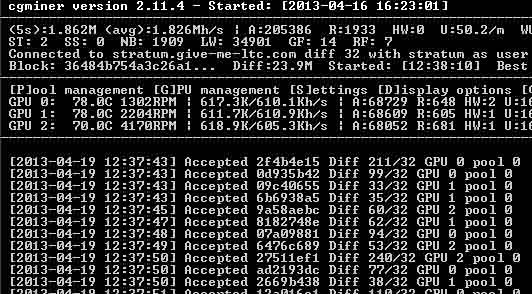
    cgminer running

    If all went well, you should see something like this when checking cgminer via your “cgm” alias.

    Congratulations—you have your own headless linux litecoin miner!

    http://www.cryptobadger.com/2013/04/build-a-litecoin-mining-rig-windows/

    By now you’ve probably seen our Linux Litecoin mining setup guide (and hopefully the hardware guide that preceded it). Perhaps you’ve decided that Linux just doesn’t seem like your cup of tea. If Windows is more your thing, you’re in luck—this guide is for you.

    Let me just reiterate that for most people, Linux is likely the better choice. With Linux, you can use a $5 USB stick instead of a $50 harddrive, and you save yourself the cost of a Windows license as well. The actual mining performance will be the same on either platform, so the cost savings of Linux would seem to make it a no-brainer as long as you’re comfortable with the slightly more complex setup (although our guide makes it simple!).

    However, if you have GPUs that aren’t voltage-locked (such as the MSI 7950s that we recommend in our hardware guide), and you plan to take advantage of that feature to undervolt your cards (we’ll show you how), Windows might become the better long-term option for you, depending on how much electricity costs in your area (edit 10/2013: easy undervolting in linux is now possible, too).

    So with that in mind, if Windows sounds like it’s the right choice for you, read on for our setup guide!


    Build a Litecoin Mining Rig, part 3:  Windows Setup

    I’m not going to go into quite as much detail as I did with our Linux setup guide, as most of you are probably already quite comfortable with basic Windows tasks. The steps outlined below should be adequate for the average Windows user, but feel free to leave comments if anything is unclear or missing.

    Step 1: Configure BIOS Settings

    Before we even get to Windows, make sure your mining computer’s BIOS settings are in order. Power on your computer, and press the “delete” key a few times immediately after power on. You should end up in the BIOS configuration area. Do the following, then save & exit:

    • Change power options so that the computer automatically turns itself on whenever power is restored. The reason for this is two-fold: first, it’ll make sure that your miner automatically starts up after a power outage. Second, it makes powering the computer on much easier if you don’t happen to have a power switch connected to the motherboard.
    • Disable all components that you don’t plan to use. This will save a little bit of power, and since your miner will likely be running 24/7, it’ll add up. For me, that meant disabling onboard audio, the USB 3.0 ports (I only had a 2.0 USB stick), the Firewire port, and the serial port.

    Step 2: Install Windows 7

    Any 64-bit edition of Windows 7 should work fine (32-bit installations should work too, but may require tweaking the settings that I provide). Windows 8 should work as well, although I have not tested it myself. Feel free to use the cheapest SATA hard drive that you can find, as it won’t impact mining performance.

    I’m going to assume that everyone reading this is capable of installing a fresh copy of Windows 7. Complete the installation and boot into the Windows desktop before proceeding to the next step. If necessary, also install the LAN/Ethernet driver that came with your motherboard so that you can get online.

    Step 3: Install Windows security updates

    While this step isn’t strictly necessary in order to get you mining, it is strongly recommended.

    • Click Start Menu -> Control Panel -> System & Security -> Windows Update -> Check for Updates
    • Install all of the critical updates

    Repeat the above two steps until there are no more updates to install. Depending on how old your Windows installation media is, this process could take quite awhile.

    Step 4: Configure automatic login

    We want our mining rigs to boot up and start mining without any intervention on our part. We’ll need to enable auto-login for that to happen.

    • Click on the Start Menu and type “netplwiz” (without the quotes) into the search box, and click on it when it appears in the programs list.
    • Uncheck the box that says “Users must enter a user name and password to use this computer”.
    • Click “Apply”. You’ll be prompted to enter your password to confirm the change.

    Step 5: Change power settings to prevent sleep

    By default, Windows will go to sleep after 30 minutes without user interaction. Obviously, we don’t want that behavior on our mining rigs. To disable it:

    • Click Start Menu -> Control Panel -> System & Security -> Power Options.
    • “Balanced” should be selected. Click on “Change plan settings” next to it.
    • Under “Plugged in”, change “Put the computer to sleep” to “Never”, then click “Save changes”.

    Step 6: Install Catalyst GPU drivers & SDK

    The latest version of the Catalyst drivers (13.x) are known to cause issues when mining. Version 12.8 and 12.10 are generally regarded as the best mining options (I’ve opted for 12.8). Some versions of the SDK can cause issues as well (I’m using 2.7, as the 2.8 SDK is known to be buggy with cgminer).

    Note that these drivers are for Radeon 7xxx series GPUs (like the 7950 that I recommend in part 1 of this guide). If you’re using another GPU, you’ll need to go to the AMD site and get appropriate drivers.

    Important: you may need to have something plugged into each GPU to prevent the OS from idling it. You can plug 3 monitors into your 3 GPUs, but that isn’t very practical. The easiest option is to create 3 dummy plugs, and leave them attached to your GPUs. They’ll “trick” the OS into believing that a monitor is attached, which will prevent the hardware from being idled. Check out how to create your own dummy plugs.

    Step 7: Install cgminer

    Cgminer is the mining software we’ll be using.

    • Download the cgminer archive (if this link is broken, check the cgminer website for the latest version and download that).
    • Extract the downloaded archive into a folder on your mining computer (you may need 7-zip to extract it).
    • Open the folder where you extracted cgminer, and create a new text file called “mine_litecoins.bat” (you can use notepad for this).
    • Enter the following text into your mine_litecoins.bat file (make sure to substitute your own pool user name and password—see note below):
      timeout /t 30
      setx GPU_MAX_ALLOC_PERCENT 100
      setx GPU_USE_SYNC_OBJECTS 1
      cgminer --scrypt -I 19 --thread-concurrency 21712 -o stratum+tcp://coinotron.com:3334 -u [USER] -p [PASS]

    Note that the cgminer settings we’re using in our mine_litecoins.bat script correspond to a good starting point for Radeon 7950 series GPUs. If you followed our hardware guide, these settings will give you good hashrates. If you’re using another type of GPU, you’ll want to use Google to find optimal cgminer settings for it.

    Also note that you’ll need to create an account at one of the litecoin mining pools, and plug your username and password into the script (the -u and -p parameters). I have Coinotron in there as an example, but there are quite a few to choose from.

    Step 8: Configure cgminer to start automatically

    We want cgminer to automatically start mining whenever the rig is powered on. That way, we keep mining losses to a minimum whenever a power outage occurs, and we don’t have to worry about manually starting it back up in other situations.

    • In your cgminer folder, right-click on your new mine_litecoins.bat file, and click “Copy”.
    • Now, click on the Start Menu, then right-click on “All Programs”. Finally click on “Open All Users”.
    • Double-click “Programs”, then double-click “Startup”. Right-click anywhere on the empty background of the Startup folder and select “Paste shortcut”.

    You should see a shortcut to your mine_litecoins.bat batch file appear in the startup folder. Windows should automatically execute it upon bootup.

    At this point, we’re done with the essentials. If you’ve done everything correctly, you should be able to reboot and watch your rig automatically start mining shortly after the Windows desktop loads. There are a couple more steps that may be important to you, though.

    Step 9 (optional): Configure MSI Afterburner & GPU undervolting

    If you have GPUs that aren’t voltage-locked, like the cards I recommended in our hardware guide, then this is the main advantage Windows has over Linux. Unfortunately, the AMD ADL for Linux imposes some artificial limits on voltage settings that aren’t present in Windows. Thus, in Windows, it’s possible to lower the voltage on certain GPUs, which will result in a significant power savings—without negatively affecting performance!

    Disclaimer: changing the factory voltage settings on your GPU can result in system instability, crashes, and/or damage. Proceed at your own risk!

    • Download MSI Afterburner.
    • When the download is complete, extract the archive and install Afterburner.
    • After installation, open Afterburner (you may be prompted to reboot—do so if asked). Click the “settings” button in the lower right, and enable every option on the “general” tab, except auto-update (the last one). Close the settings.
    • Now you should be able to change the voltage settings on your GPUs, assuming your card supports it. If you’re using the MSI 7950 from our hardware guide, 1087 mV is a good place to start.
    • Click the “auto apply overclock settings on startup” button, and minimize Afterburner.

    MSI Afterburner will auto-start at bootup, and your voltage settings will be applied automatically. For me, running a rig with our recommended hardware, using Afterburner to undervolt GPUs resulted in a ~150w reduction in power usage. Pretty significant considering the rig runs 24/7!

     Step 10 (optional): Configure remote administration

    Configuring remote administration will allow you to disconnect the monitor, keyboard, and mouse from your mining rig and manage it from another computer—even over the internet, if you wish. The Windows built-in Remote Desktop Administration feature unfortunately isn’t a great option, as it messes with the GPU driver and will prevent cgminer from reading temperature information properly.

    Fortunately there are a host of other options available. I recommend TightVNC or Google Chrome Remote Desktop. Both are lightweight, simple, and free. Here are the basic setup instructions for TightVNC:

    • Download TightVNC.
    • Install TightVNC on your mining rig. Choose a custom installation and make only the server portion of the application available.
    • Now install TightVNC on the other computer(s) that you plan to manage your rig with. Choose a custom installation and make only the client portion of the application available.
    • If you plan to manage your miner across the internet, forward port 5900 on your router to your mining rig (make sure you choose a strong password if you do this!).

    That’s it—you’re done! You’ll probably want to test everything now. The easiest way to do that is to power down your miner. Turn it back on and the following should happen:

    1. Windows should boot up as usual.
    2. You should see a 30 second countdown to cgminer’s launch shortly after the Windows desktop appears.
    3. MSI Afterburner will load minimized (if you installed it in step 9) at some point, and undervolt your GPUs.
    4. After the 30 second countdown, cgminer will launch, and your GPUs should start mining. You’ll probably hear your GPU fans spin up a few seconds after this occurs.
    5. You should be able to VNC into your rig at any point after the desktop loads to monitor cgminer’s progress and GPU temperatures.
    6. If you ever need to start cgminer manually (because you quit out of it, or killed it, etc), simply double-click your mine_litecoins.bat file, located in your cgminer folder.
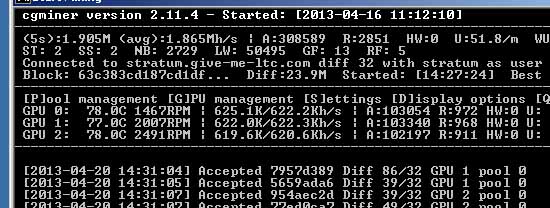
    cgminer in Windows

    If all went well, you should see something like this in your cgminer window!

    Congratulations—you have your own headless windows litecoin miner!

    The screenshot above shows 3x 7950 GPUs getting nearly 1.9 Mh/sec, which is pretty good. These cards are slightly overclocked (but still undervolted!)—I show you how to achieve even higher speeds in the next section of this guide.


  • Ubuntu常用包管理命令

    说明:由于图形化界面方法(如Add/Remove… 和Synaptic Package Manageer)比较简单,所以这里主要总结在终端通过命令行方式进行的软件包安装、卸载和删除的方法。

    一、Ubuntu中软件安装方法

    1、APT方式

    (1)普通安装:apt-get install softname1 softname2 …;

    (2)修复安装:apt-get -f install softname1 softname2… ;(-f Atemp to correct broken dependencies)

    (3)重新安装:apt-get –reinstall install softname1 softname2…;

    2、Dpkg方式

    (1)普通安装:dpkg -i package_name.deb

    3、源码安装(.tar、tar.gz、tar.bz2、tar.Z)

    首先解压缩源码压缩包然后通过tar命令来完成

    a.解xx.tar.gz:tar zxf xx.tar.gz
    b.解xx.tar.Z:tar zxf xx.tar.Z
    c.解xx.tgz:tar zxf xx.tgz
    d.解xx.bz2:bunzip2 xx.bz2
    e.解xx.tar:tar xf xx.tar

    然后进入到解压出的目录中,建议先读一下README之类的说明文件,因为此时不同源代码包或者预编译包可能存在差异,然后建议使用ls -F –color或者ls -F命令(实际上我的只需要 l 命令即可)查看一下可执行文件,可执行文件会以*号的尾部标志。

    一般依次执行./configure

    make

    sudo make install

    即可完成安装。

    二、Ubuntu中软件包的卸载方法

    1、APT方式

    (1)移除式卸载:apt-get remove softname1 softname2 …;(移除软件包,当包尾部有+时,意为安装)

    (2)清除式卸载 :apt-get –purge remove softname1 softname2…;(同时清除配置)

    清除式卸载:apt-get purge sofname1 softname2…;(同上,也清除配置文件)

    2、Dpkg方式

    (1)移除式卸载:dpkg -r pkg1 pkg2 …;

    (2)清除式卸载:dpkg -P pkg1 pkg2…;


    三、Ubuntu中软件包的查询方法

    Dpkg 使用文本文件来作为数据库.通称在 /var/lib/dpkg 目录下. 通称在 status 文件中存储软件状态,和控制信息. 在 info/ 目录下备份控制文件, 并在其下的 .list 文件中记录安装文件清单, 其下的 .mdasums 保存文件的 MD5 编码.

    体验使用数据库的时刻到了:

    $ dpkg -l
    Desired=Unknown/Install/Remove/Purge/Hold
    | Status=Not/Installed/Config-files/Unpacked/Failed-config/Half-installed
    |/ Err?=(none)/Hold/Reinst-required/X=both-problems (Status,Err: uppercase=bad)
    ||/ Name       Version           Description
    +++-===========-================-========================================
    ii  aalib1     1.4p5-28          ascii art library - transitional package
    ii  adduser    3.85              Add and remove users and groups
    ii  alien      .63               install non-native packages with dpkg
    ... ...
    

    每条记录对应一个软件包, 注意每条记录的第一, 二, 三个字符. 这就是软件包的状态标识, 后边依此是软件包名称, 版本号, 和简单描述.

    • 第一字符为期望值,它包括:
      • u 状态未知,这意味着软件包未安装,并且用户也未发出安装请求.
      • i 用户请求安装软件包.
      • r 用户请求卸载软件包.
      • p 用户请求清除软件包.
      • h 用户请求保持软件包版本锁定.
    • 第二列,是软件包的当前状态.此列包括软件包的六种状态.
      • n 软件包未安装.
      • i 软件包安装并完成配置.
      • c 软件包以前安装过,现在删除了,但是它的配置文件还留在系统中.
      • u 软件包被解包,但还未配置.
      • f 试图配置软件包,但是失败了.
      • h 软件包安装,但是但是没有成功.
    • 第三列标识错误状态,可以总结为四种状态. 第一种状态标识没有问题,为空. 其它三种符号则标识相应问题.
      • h 软件包被强制保持,因为有其它软件包依赖需求,无法升级.
      • r 软件包被破坏,可能需要重新安装才能正常使用(包括删除).
      • x 软包件被破坏,并且被强制保持.

    也可以以统配符模式进行模糊查询, 比如我要查找以nano字符开始的所有软件包:

    $ dpkg -l nano*
    Desired=Unknown/Install/Remove/Purge/Hold
    | Status=Not/Installed/Config-files/Unpacked/Failed-config/Half-installed
    |/ Err?=(none)/Hold/Reinst-required/X=both-problems (Status,Err: uppercase=bad)
    ||/ Name           Version        Description
    +++-==============-==============-============================================
    ii  nano           1.3.10-2       free Pico clone with some new features
    pn  nano-tiny      <none>         (no description available)
    
    un  nanoblogger    <none>         (no description available)
    

    以上状态说明: 系统中安装了 nano 版本为 1.3.10-2 ;安装过 nano-tiny , 后来又清除了; 从未安装过nanoblogger .

    如果觉得 dpkg 的参数过多, 不利于记忆的话, 完全可以使用 dpkg-query 进行 dpkg 数据库查询.

    应用范例:

    • 查询系统中属于nano的文件:

      $ dpkg –listfiles nano

      or

      $ dpkg-query -L nano

    • 查看软件nano的详细信息:

      $ dpkg -s nano

      or

      $ dpkg-query -s nano

    • 查看系统中软件包状态, 支持模糊查询:

      $ dpkg -l

      or

      $dpkg-query -l

    • 查看某个文件的归属包:

      $ dpkg-query -S nano

      or

      $ dpkg -S nano

    三、其他应用总结

    apt-cache search # ——(package 搜索包)
    apt-cache show #——(package 获取包的相关信息,如说明、大小、版本等)
    apt-get install # ——(package 安装包)
    apt-get install # —–(package –reinstall 重新安装包)
    apt-get -f install # —–(强制安装, “-f = –fix-missing”当是修复安装吧…)
    apt-get remove #—–(package 删除包)
    apt-get remove –purge # ——(package 删除包,包括删除配置文件等)
    apt-get autoremove –purge # —-(package 删除包及其依赖的软件包+配置文件等(只对6.10有效,强烈推荐))
    apt-get update #——更新源
    apt-get upgrade #——更新已安装的包
    apt-get dist-upgrade # ———升级系统
    apt-get dselect-upgrade #——使用 dselect 升级
    apt-cache depends #——-(package 了解使用依赖)
    apt-cache rdepends # ——(package 了解某个具体的依赖,当是查看该包被哪些包依赖吧…)
    apt-get build-dep # ——(package 安装相关的编译环境)
    apt-get source #——(package 下载该包的源代码)
    apt-get clean && apt-get autoclean # ——–清理下载文件的存档 && 只清理过时的包
    apt-get check #——-检查是否有损坏的依赖
    dpkg -S filename —–查找filename属于哪个软件包
    apt-file search filename —–查找filename属于哪个软件包
    apt-file list packagename —–列出软件包的内容
    apt-file update –更新apt-file的数据库

    dpkg –info “软件包名” –列出软件包解包后的包名称.
    dpkg -l –列出当前系统中所有的包.可以和参数less一起使用在分屏查看. (类似于rpm -qa)
    dpkg -l |grep -i “软件包名” –查看系统中与”软件包名”相关联的包.
    dpkg -s 查询已安装的包的详细信息.
    dpkg -L 查询系统中已安装的软件包所安装的位置. (类似于rpm -ql)
    dpkg -S 查询系统中某个文件属于哪个软件包. (类似于rpm -qf)
    dpkg -I 查询deb包的详细信息,在一个软件包下载到本地之后看看用不用安装(看一下呗).
    dpkg -i 手动安装软件包(这个命令并不能解决软件包之前的依赖性问题),如果在安装某一个软件包的时候遇到了软件依赖的问题,可以用apt-get -f install在解决信赖性这个问题.
    dpkg -r 卸载软件包.不是完全的卸载,它的配置文件还存在.
    dpkg -P 全部卸载(但是还是不能解决软件包的依赖性的问题)
    dpkg -reconfigure 重新配置

    apt-get install
    下载软件包,以及所有依赖的包,同时进行包的安装或升级。如果某个包被设置了 hold (停止标志,就会被搁在一边(即不会被升级)。更多 hold 细节请看下面。
    apt-get remove [–purge]
    移除 以及任何依赖这个包的其它包。
    –purge 指明这个包应该被完全清除 (purged) ,更多信息请看 dpkg -P。

    apt-get update
    升级来自 Debian 镜像的包列表,如果你想安装当天的任何软件,至少每天运行一次,而且每次修改了
    /etc/apt/sources.list 後,必须执行。

    apt-get upgrade [-u]
    升 级所有已经安装的包为最新可用版本。不会安装新的或移除老的包。如果一个包改变了依赖关系而需要安装一个新的包,那么它将不会被升级,而是标志为 hold。apt-get update 不会升级被标志为 hold 的包 (这个也就是 hold 的意思)。请看下文如何手动设置包为 hold。我建议同时使用 ‘-u’ 选项,因为这样你就能看到哪些包将会被升级。

    apt-get dist-upgrade [-u]
    和 apt-get upgrade 类似,除了 dist-upgrade 会安装和移除包来满足依赖关系。因此具有一定的危险性。

    apt-cache search
    在软件包名称和描述中,搜索包含xxx的软件包。

    apt-cache show
    显示某个软件包的完整的描述。

    apt-cache showpkg
    显示软件包更多细节,以及和其它包的关系。

    dselect
    console-apt
    aptitude
    gnome-apt
    APT 的几个图形前端(其中一些在使用前得先安装)。这里 dselect 无疑是最强大的,也是最古老,最难驾驭。

    普通 Dpkg 用法
    dpkg -i
    安装一个 Debian 包文件,如你手动下载的文件。

    dpkg -c
    列出 的内容。

    dpkg -I
    从 中提取包信息。

    dpkg -r
    移除一个已安装的包。

    dpkg -P
    完全清除一个已安装的包。和 remove 不同的是,remove 只是删掉数据和可执行文件,purge 另外还删除所有的配制文件。

    dpkg -L
    列出 安装的所有文件清单。同时请看 dpkg -c 来检查一个 .deb 文件的内容。

    dpkg -s
    显示已安装包的信息。同时请看 apt-cache 显示 Debian 存档中的包信息,以及 dpkg -I 来显示从一个 .deb 文件中提取的包信息。

    dpkg-reconfigure
    重 新配制一个已经安装的包,如果它使用的是 debconf (debconf 为包安装提供了一个统一的配制界面)。你能够重新配制 debconf 它本身,如你想改变它的前端或提问的优先权。例如,重新配制 debconf,使用一个 dialog 前端,简单运行:

    dpkg-reconfigure –frontend=dialog debconf (如果你安装时选错了,这里可以改回来哟:)

    echo ” hold” | dpkg –set-selections
    设置 的状态为 hlod (命令行方式)

    dpkg –get-selections “”
    取的 的当前状态 (命令行方式)

    支持通配符,如:
    Debian:~# dpkg –get-selections *wine*
    libwine hold
    libwine-alsa hold
    libwine-arts hold
    libwine-dev hold
    libwine-nas hold
    libwine-print hold
    libwine-twain hold
    wine hold
    wine+ hold
    wine-doc hold
    wine-utils hold

    例如:
    大家现在用的都是 gaim-0.58 + QQ-plugin,为了防止 gaim 被升级,我们可以采用如下方法:

    方法一:
    Debian:~# echo “gaim hold” | dpkg –set-selections
    然後用下面命令检查一下:
    Debian:~# dpkg –get-selections “gaim”
    gaim hold
    现在的状态标志是 hold,就不能被升级了。

    如果想恢复怎么办呢?
    Debian:~# echo “gaim install” | dpkg –set-selections
    Debian:~# dpkg –get-selections “gaim”
    gaim install
    这时状态标志又被重置为 install,可以继续升级了。

    同志们会问,哪个这些状态标志都写在哪个文件中呢?
    在 /var/lib/dpkg/status 里,你也可以通过修改这个文件实现 hold。

    有时你会发现有的软件状态标志是 purge,不要奇怪。
    如:事先已经安装了 amsn,然後把它卸了。
    apt-get remove –purge amsn
    那么状态标志就从 install 变成 purge。

    方法二:
    在/etc/apt 下手动建一个 preferences 文件
    内容:
    Package: gaim
    Pin: version 0.58*
    保存

    dpkg -S
    在包数据库中查找 ,并告诉你哪个包包含了这个文件。(注:查找的是事先已经安装的包)

    ——————————————–
    Debian的软件包管理工具命令不完全列表
    ——————————————–
    Debian系统中所有的包信息都在/var/lib/dpkg下.其中/var/lib/dpkg/info目录中保存了各个软件包的信息及管理文件.每个文件的作用如下:
    以 “.conffiles”     结尾的文件记录软件包的配置列表.
    以 “.list”          结尾的文件记录了软件包的文件列表,用户可在文件当中找到软件包文件的具体安装位置.
    以 “.md5sums”       结尾的文件记录了md5信息,用来进行包的验证的.
    以 “.config”        结尾的文件是软件包的安装配置角本.
    以 “.postinst”      角本是完成Debian包解开之后的配置工作,通常用来执行所安装软件包相关的命令和服务的重新启动.
    以 “.preinst”       角本在Debain解包之前运行,主要作用是是停止作用于即将升级的软件包服务直到软件包安装或和升级完成.
    以 “.prerm”         脚本负责停止与软件包关联的daemon服务,在删除软件包关联文件之前执行.
    以 “.postrm”        脚本负责修改软件包链接或文件关联,或删除由它创建的文件.

    /var/lib/dpkg/available是软件包的描述信息.
    包括当前系统中所有使用的Debian安装源中所有的软件包,还包括当前系统中已经安装和未安装的软件包.

    1.dpkg包管理工具

    dpkg -r 卸载软件包.不是完全的卸载,它的配置文件还存在.
    dpkg –info “软件包名” –列出软件包解包后的包名称.
    dpkg -l     –列出当前系统中所有的包.可以和参数less一起使用在分屏查看.
    dpkg -l |grep -i “软件包名” –查看系统中与”软件包名”相关联的包.
    dpkg -s   查询已安装的包的详细信息. dpkg -L   查询系统中已安装的软件包所安装的位置.
    dpkg -S   查询系统中某个文件属于哪个软件包.
    dpkg -I   查询deb包的详细信息,在一个软件包下载到本地之后看看用不用安装(看一下呗).
    dpkg -i 手动安装软件包(这个命令并不能解决软件包之前的依赖性问题),如果在安装某一个软件包的时候遇到了软件依赖的问题,可以用apt-get -f install在解决信赖性这个问题.
    dpkg -reconfigure 重新配置
    dpkg -P 全部卸载(但是还是不能解决软件包的依赖性的问题)
    2. apt高级包管理工具
    (1)GTK图形的”synaptic”,这是APT的前端工具.
    (2)”aptitude”,这也是APT的前端工具.
    用APT管理工具进行包的管理,可以有以下几种方法做源:
    (1)拿安装盘做源,方法如下:
    apt-cdrom ident        扫描光盘的信息
    apt-cdrom add          添加光盘源
    (2)这也是最常用的方法就是把源添加到/etc/apt/source.list中,之后更新列apt-get update
    APT管理工具常用命令
    apt-cache 加上不同的子命令和参数的使用可以实现查找,显示软件,包信息及包信赖关系等功能.
    apt-cache stats 显示当前系统所有使用的Debain数据源的统计信息.
    apt-cache search +”包名”,可以查找相关的软件包.
    apt-cache show   +”包名”,可以显示指定软件包的详细信息.
    apt-cache depends +”包名”,可以查找软件包的依赖关系.
    apt-get upgrade   更新系统中所有的包到最新版
    apt-get install   安装软件包
    apt-get –reindtall install 重新安装软件包
    apt-get remove 卸载软件包
    apt-get –purge remove 完全卸载软件包
    apt-get clean 清除无用的软件包
    在用命令apt-get install之前,是先将软件包下载到/var/cache/apt/archives中,之后再进行安装的.所以我们可以用apt-get clean清除/var/cache/apt/archives目录中的软件包.
    源码包安装
    apt-cache showsrc 查找看源码包的文件信息(在下载之前)
    apt-get source 下载源码包.
    apt-get build-dep +”包名” 构建源码包的编译环境.


    清除处于rc状态的软件包

    dpkg -l |grep ^rc|awk ‘{print $2}’ |tr [“\n”] [” “] | sudo xargs dpkg -P –


    Ubuntu 方便宜用,最值得让人称道的便是其安装软件的方式, 一条命令: sudo apt-get install xxx 就几乎能帮你搞定所有的软件安装难题。但是有时你可能有这样的需求,查看某个软件包是否安装、安装在哪…, 那我们就来介绍一下 Ubuntu 的软件包管理方式。

    一、Ubuntu 采用 Debian 的软件包管理器 dpkg 来管理软件包, 类似 RPM. 系统中所有 packages 的信息都在 /var/lib/dpkg/
    目录下, 其子目录 /var/lib/dpkg/info 用于保存各个软件包的配置文件列表:
    (1).conffiles 记录了软件包的配置文件列表
    (2).list 保存软件包中的文件列表, 用户可以从 .list 的信息中找到软件包中文件的具体安装位置.
    (3).md5sums 记录了软件包的md5信息, 这个信息是用来进行包验证的.
    (4).prerm 脚本在 Debian 包解包之前运行, 主要作用是停止作用于即将升级的软件包的服务, 直到软件包安装或升级完成.
    (5).postinst 脚本是完成 Debian 包解开之后的配置工作, 通常用于执行所安装软件包相关命令和服务重新启动.

    /var/lib/dpkg/available 文件的内容是软件包的描述信息, 该软件包括当前系统所使用的 Debian 安装源中的所有软件包,
    其中包括当前系统中已安装的和未安装的软件包.

    /var/cache/apt/archives 目录是在用 apt-get install 安装软件时,软件包的临时存放路径

    /etc/apt/sources.list 存放的是软件源站点, 当你执行 sudo apt-get install xxx 时,Ubuntu 就去这些站点下载软件包到本地并执行安装

    二、相关命令使用示例:
    (1)查看某软件包的安装内容
    dpkg -L xxx

    (2)查找软件库中的软件包
    apt-cache search 正则表达式

    (3)显示系统安装包的统计信息
    apt-cache stats

    (4)显示系统全部可用软件包的名称
    apt-cache pkgnames

    (5)显示某软件包的详细信息
    apt-cache show xxx

    (6)查找某文件属于哪个包
    apt-file search xxx

    (7)查看已经安装了哪些软件包
    dpkg -l

    (8)查询某软件依赖哪些软件包
    apt-cache depends xxx

    (9)查询某软件被哪些软件包依赖
    apt-cache rdepends xxx

    (10)增加一个光盘源
    sudo apt-cdrom add
    注: 顾名思义, 就是安装更新软件包时让其优先从Ubuntu 光盘上找(如果你不能上网安装/更新, 但有 Ubuntu 的 DVD ISO, 这会对你非常有用)

    (11)系统升级
    sudo apt-get update

    (12)清除所有已删除软件包的残馀配置文件
    dpkg -l |grep ^rc|awk ‘{print $2}’ |sudo xargs dpkg -P

    (13)编译时缺少h文件的自动处理
    sudo auto-apt run ./configure

    (14)查看安装软件时下载软件包的临时存放目录
    ls /var/cache/apt/archives

    (15)备份当前系统安装的所有软件包的列表
    dpkg –get-selections | grep -v deinstall > ~/somefile

    (16)从上面备份的安装包的列表文件恢复所有包
    dpkg –set-selections < ~/somefile
    sudo dselect

    (17)清理旧版本的软件缓存
    sudo apt-get autoclean

    (18)清理所有软件缓存
    sudo apt-get clean

    (19)删除系统不再使用的孤立软件
    sudo apt-get autoremove

    (20)查看软件包在服务器上面的地址
    apt-get -qq –print-uris install ssh | cut -d\’ -f2


  • firefox强大的下载插件downthemall

    非常不错的下载工具,提供高级加速器可增加4倍以上的加速并且允许您随时暂停并恢复下载。只需一次点击即可下载网页中的所有链接;可以使用正则表达式自定义监视的文件类型;支持断点续传;多线程下载,大大提高下载速度。
    DownThemAll快速,可靠并且容易使用!它让您可以下载页面中的所有链接和图像,还有更多:您可以用可高度可定制的条件提纯您的下载,来获取您想 要的!可完全控制下载,随时指定速度和并发连接数量。使用Metalinks或手动增加镜像从其它服务器同时下载文件。

    http://www.downthemall.net/

    about:downthemall

  • 转–Ubuntu/linux下最强大的下载工具-aria2

    aria2是我今天新学到的一个命令行的下载工具,虽然还没研究透,但是他绝对比wget更好.

    aria2 是 Linux 下一个不错的高速下载工具。由于它具有分段下载引擎,所以支持从多个地址或者从一 个地址的多个连接来下载同一个文件。这样自然就大大加快了文件的下载速 度。aria2 也具有断点续传功能,这使你随时能够恢复已经中断的文件下载。除了支持一般的 http(s) 和 ftp 协议外,aria2 还支持 BitTorrent 协议。这意味着,你也可以使用 aria2 来下载 torrent 文件。

    安装 aria2

    aria2 目前已被包含到许多 Linux 发行版中,因此你可以通过所用的系统直接加以安装。例如,在 Debian/Ubuntu 中,你可以在终端执行如下指令来安装 aria2:

    sudo apt-get install aria2aria2 的使用方法

    aria2 是命令行程序,使用非常简单。

    • 一般使用使用 aria2 下载文件,只需在命令后附加地址即可。比如我们下载ubuntu如: aria2c http://www.mirror.tw/pub/ubuntu/releases/jaunty/ubuntu-9.04-desktop-i386.iso
    • 分段下载利用 aria2 的分段下载功能可以加快文件的下载速度,对于下载大文件时特别有用。为了使用 aria2 的分段下载功能,你需要在命令中指定 s 选项。如: aria2c -s 2 http://www.mirror.tw/pub/ubuntu/releases/jaunty/ubuntu-9.04-desktop-i386.iso这将使用 2 个连接来下载该文件。s 后面的参数值介于 1~5 之间,你可以根据实际情况选择。
    • 断点续传在命令中使用 c 选项可以断点续传文件。如: aria2c -c http://www.mirror.tw/pub/ubuntu/releases/jaunty/ubuntu-9.04-desktop-i386.iso
    • 下载 torrent 文件你也可以使用 aria2 下载 BitTorrent 文件。如: aria2c -o gutsy.torrent http://cdimage.ubuntu.com/daily-live/current/gutsy-desktop-i386.iso.torrent

    关于 aria2 的更多用法,可以通过 man aria2c 查阅。

  • Ubuntu下常见问题技巧-持续更新

    ubuntu在英文环境下,ibus不能启动的问题,解决如下:

    在shell下输入:gnome-settings-daemon

    然后进行设置:
    Name: IBus daemon
    Command: /usr/bin/ibus-daemon -d
    Comment: start IBus daemon when Gnome starts

    四、中文环境下,想让make等运行时输出英文的错误信息:

    export LC_ALL=C

    五、安装nfs-server:

    apt-get install nfs-kernel-server

    root@skyi:/home# cat /etc/exports
    /home/nfs_disk *(rw,sync,no_root_squash)

    root@skyi:/home# cat /etc/default/tftpd-hpa (安装tftpd-hpa服务器)
    # /etc/default/tftpd-hpa
    TFTP_USERNAME=”tftp”
    TFTP_DIRECTORY=”/tftpboot”
    TFTP_ADDRESS=”0.0.0.0:69″
    TFTP_OPTIONS=”-l -c -s –secure”

    六、批量重命名文件后缀:

    rename ‘s/\.bin$/\.jpg/’ *.bin(把bin后缀改成jpg)

    七、gedit打开中文乱码的解决:
    1、运行dconf-editor
    2、展开/org/gnome/gedit/preferences/encodings
    3、auto-detected的Value中加入 ‘GB18030’ ,加在CURRENT前面;

    八、输入法的全角、半角切换快捷键:

    常用快捷键:

    • shift+空格:全角半角切换
    • Ctrl+;:简体繁体切换
    • Ctrl+,:切换单字模式
    • Ctrl+.:切换中英文标点
    • Ctrl+/:切换直接提交模式


    Shift 中英文切换
    (左)Shift + Space 字母全角/半角切换
    Ctrl + . 符号全角/半角切换
    Ctrl + Space 启动关闭输入法
    Ctrl + 数字 删除数字对应的用户自造词
    回车按钮 直接输入英文


  • ubuntu软件中心打不开解决办法

    出现诸如

    无法检查更新,提示E:Encountered a section with no Package: header, E:Problem with MergeList /var/lib/apt/lists/cn.archive.ubuntu.com_ubuntu_dists_natty_main_binary-i386_Packages

    解决

    依次运行下面的命令:

    sudo rm /var/lib/apt/lists/* -vf

    sudo apt-get update

    sudo apt-get dist-upgrade

    sudo apt-get install –reinstall software-center

  • Xming X Server 配置和使用-转

    http://hi.baidu.com/edeed/item/40371af1e0a4e5c4a835a28b

    Linux以及各种Unix like的操作系统现在都用基于X Window图形界面. 这个东西虽然块头比较大, 效率不太高, 导致Linux的3D游戏一直没什么动静, 但是, 它接口良好, 扩展性和可移植性都很好, 最重要的是具有网络透明性, 所以我们就可以很方便的远程启动Linux的图形程序. 下面说的就是在Windows下远程运行Linux图形界面的方法.

    1. 原理Linux/Unix的X Window具有网络透明性. X Window系统里有一个统一的Server来负责各个程序与显示器/键盘和鼠标等输入输出设备的交互, 每个有GUI的应用程序都通过网络协议与Server进行交互. 所以对于任何一个应用程序, 本地运行和远程运行的差别仅仅是X Server的地址不同, 别的没有差别. 所以在Windows运行一个X Server, 就可以很方便的远程运行有GUI的Linux应用了. 同时, OpenSSH具有X转发功能, 可以将Linux主机的X程序通过SSH的管道转发给客户端. 于是通过PuTTY或SecureCRT连接到主机, 再将接收到的由主机转发来的X程序的交互交给在本地Windows系统下运行的X Server来管理和显示, 原则上说, 这就可以实现远程使用Linux的GUI程序.
    主机上需要的配置(默认即是):
    # vi /etc/ssh/sshd_config
    取消这一行的注释, 如果没有这一行则手动添加之:
    X11Forwrding yes
    这样配置的作用就是允许SSH的X转发. 其实本质上说, 这样做是有一定安全风险的, SSH并不能绝对的保证你数据的安全性, 不过一般情况下这也够了.2. 软件介绍和下载需要在本地Windows上运行一个X Server. 选择有很多, Cygwin下的X Server恐怕是最著名的, 但是为了这么一个小小的事情去安装一个Cygwin似乎有些夸张; 除了Cygwin, 还有两个著名的商业软件可以选用, Xwin32和Xmanager, 感觉很流畅很好用, 不过虽然Xmanager可以试用, 但是终究还是商业软件; 还有一个选择, 就是这里要讲的, 开源软件Xming. Xming是一个配置简单而功能强大的开源X Server, 可以运行在M$的XP/2003/Vista操作系统下.

    介绍: http://www.straightrunning.com/XmingNotes/
    下载: http://sourceforge.net/project/showfiles.php?group_id=156984
    Xming 6.9.0.31 用OpenGL展示界面
    Xming-fonts 7.4.0.3 标准X字体,部分传统的X应用的显示也需要这些字体
    Xming-mesa 6.9.0.31 用更慢的Mesa展示界面, 有时X转发会更好
    Xming-portable-PuTTY 7.3.0.26 不写注册表的putty, 也可用传统的putty或secureCRT等提供X界面转发ssh程序
    Xming-tools-and-clients 6.9.0.28 提供一些X应用专用的工具
    XLaunch_zh.zip 如果不习惯使用Xming自带的英文版XLaunch, 可下载中文版的,下载地址http://www.straightrunning.com/code/XLaunch_zh.zip

    3. Xming安装和运行

    双击Xming-6-9-0-31-setup.exe安装Xming, 第一次运行时使用开始菜单里面的XLaunch来启动, 产生一个初始的配置文件. 对于简单的使用来说, 不需要任何特殊的配置, 一切使用默认即可. 需要记住的是下图中标示出的”Display number”中的数字, 此处使用默认的0.


    最后一步中的Save configuration可以把这个设置保存为一个文件, 以后每次用这个设置只需运行该文件, 而不用每次都重新配置. 启动完成后, 在托盘区会出现一个”X”形状的图标, 这表示Xming已经在运行了, 将鼠标悬停上去, 能看到当前使用的”Display number”.

    4. PuTTY对X转发的配置

    在Session页面的Host name和port里填好putty的服务器地址和端口.
    在Data页面的Auto-login username里填好登录用户名.
    在SSH页面的Preffered SSH protocal version里设置优先SSH版本是2.
    最重要的一步, 在X11页面选择Enable X11 forwarding, X display location填上localhost:0, 下面的协议选择MIT-Magic-Cookie-1.


    然后连接登录远程主机, 看上去一切正常的样子. 试着运行一下 emacs & 图形界面就出来了, 只是看不到文字, 全是些方块.
    看看终端的输出信息:
    $ emacs &
    Warning: Cannot convert string “-*-courier-medium-r-*-*-*-120-*-*-*-*-iso8859-*” to type FontStruct
    Warning: Cannot convert string “-*-helvetica-medium-r-*–*-120-*-*-*-*-iso8859-1” to type FontStruct
    原来是Xming没有相应的字体. 下面安装Xming-fonts 7.4.0.3

    5. Xming-fonts的安装

    双击Xming-fonts-7-4-0-3-setup.exe安装Xming-fonts, 安装路径为默认的C:\Program Files\Xming, 则安装字体之后的字体路径就是C:\Program Files\Xming\fonts. 这样安装字体后, 运行 emacs & 字体能正常显示了. 再来试试, 这下子emacs就正常多了.


    6. SecureCRT对X转发的配置

    在Session Options – Port Forwarding – Remote/X11 里选上”Forward X11 packets”, 如下:


    然后连接登录远程主机, 看上去一切正常的样子. 试着运行一下 emacs & 图形界面就出来了.

    7. 小小的Tips

    用防火墙阻止Xming访问网络. 因为这样的一个X Server本质是不安全的, 而且并不需要它联网, 因为你只是在本机使用而已.
    感受: Xming总体来说还是不如Xmanager, 运行的流畅程度还是有不小的差距, 尤其是鼠标的移动, 感觉一顿一顿的, 纵然是在局域网内, 情况也没有好特别多.

    –End–

  • Fedora17的学习笔记

    fedora 17上已经不再使用chkconfig来配置服务了,RHEL上很多相关命令在fedora 17上都没法正常使用了。
    chkconfig –list只能看到极个别的服务

    systemctl start|stop|status XXX.service
    ntsysv命令在fedora 17下支持的服务不多了

    开启自启动:
    systemctl enable proftpd.service
    ln -s ‘/lib/systemd/system/proftpd.service’ ‘/etc/systemd/system/multi-user.target.wants/proftpd.service’
    systemctl enable mysqld.service
    ln -s ‘/lib/systemd/system/mysqld.service’ ‘/etc/systemd/system/multi-user.target.wants/mysqld.service’

    systemctl status httpd.service
    httpd.service – The Apache HTTP Server (prefork MPM)
    Loaded: loaded (/lib/systemd/system/httpd.service; enabled)
    Active: active (running) since Mon, 04 Feb 2013 10:40:54 +0800; 3h 51min ago
    Main PID: 10991 (httpd)
    CGroup: name=systemd:/system/httpd.service
    ├ 10991 /usr/sbin/httpd -k start
    ├ 10993 /usr/sbin/httpd -k start
    ├ 10994 /usr/sbin/httpd -k start
    ├ 10995 /usr/sbin/httpd -k start
    ├ 10996 /usr/sbin/httpd -k start
    ├ 10997 /usr/sbin/httpd -k start
    ├ 10998 /usr/sbin/httpd -k start
    ├ 10999 /usr/sbin/httpd -k start
    ├ 11000 /usr/sbin/httpd -k start
    ├ 11187 /usr/sbin/httpd -k start
    ├ 11188 /usr/sbin/httpd -k start
    └ 11367 /usr/sbin/httpd -k start